T1000s LED Controller: Complete Setup & Usage Guide
Accurate guide to setting up and using the T1000s LED controller. No remotes, no music features - just the facts.
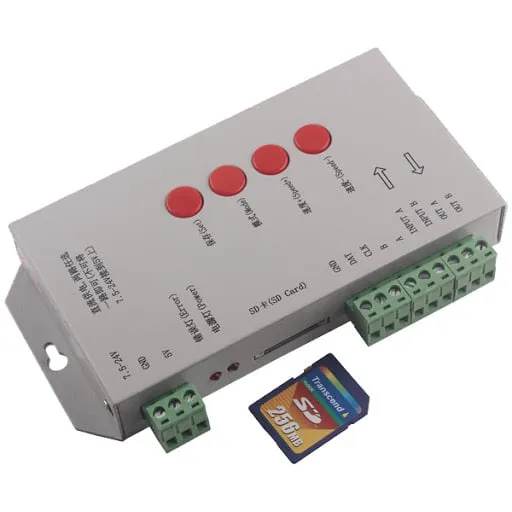
Table of Contents
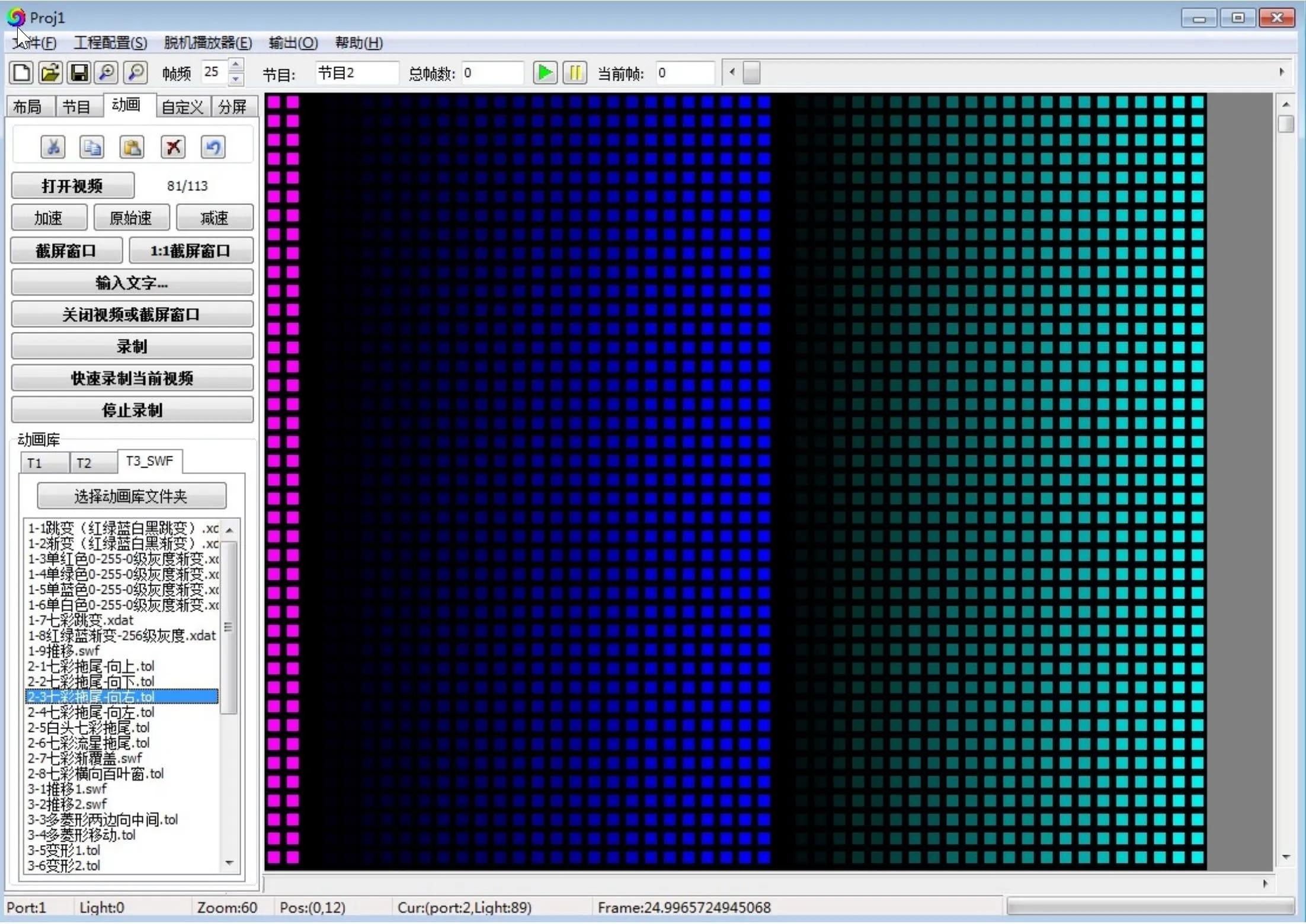
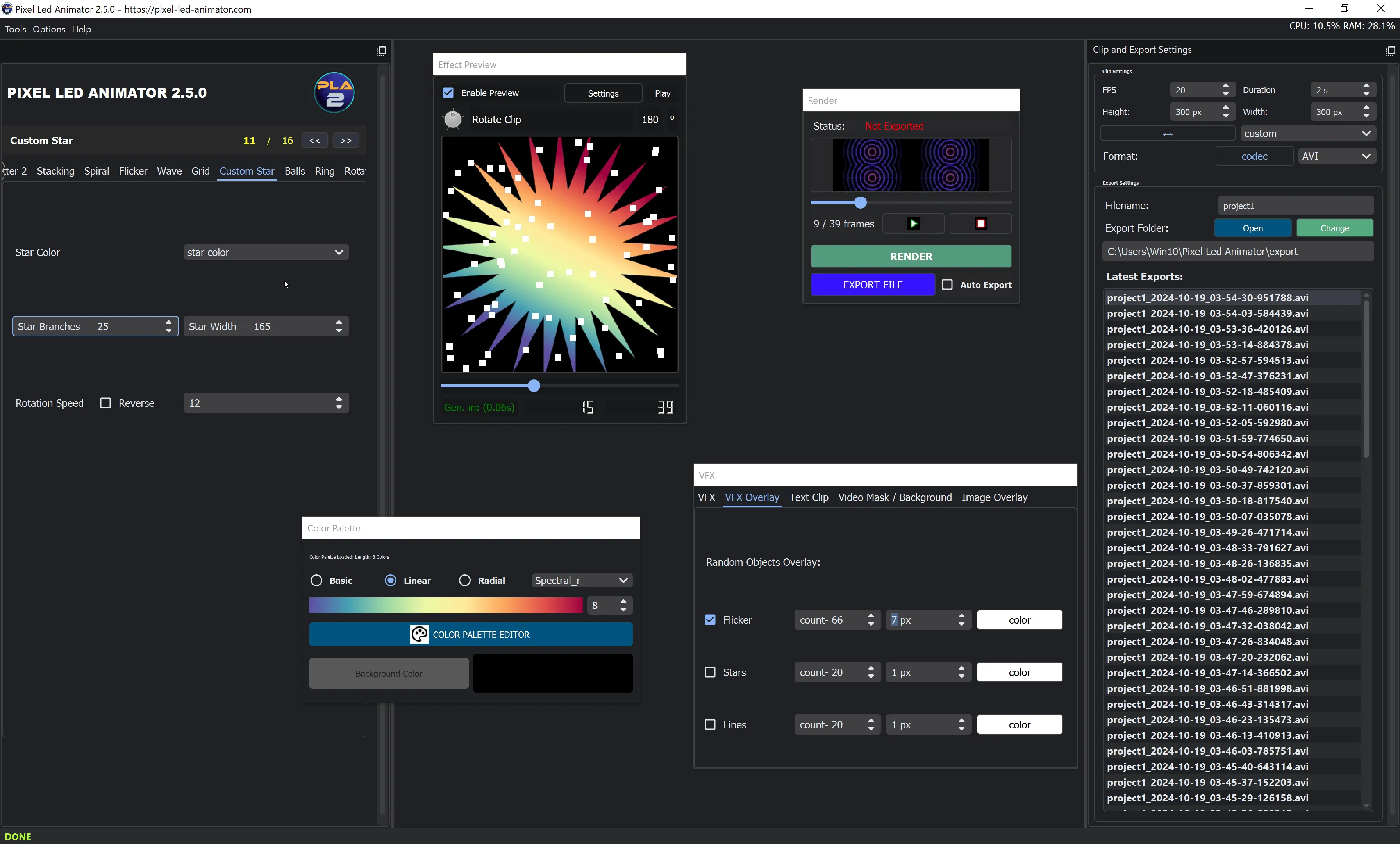
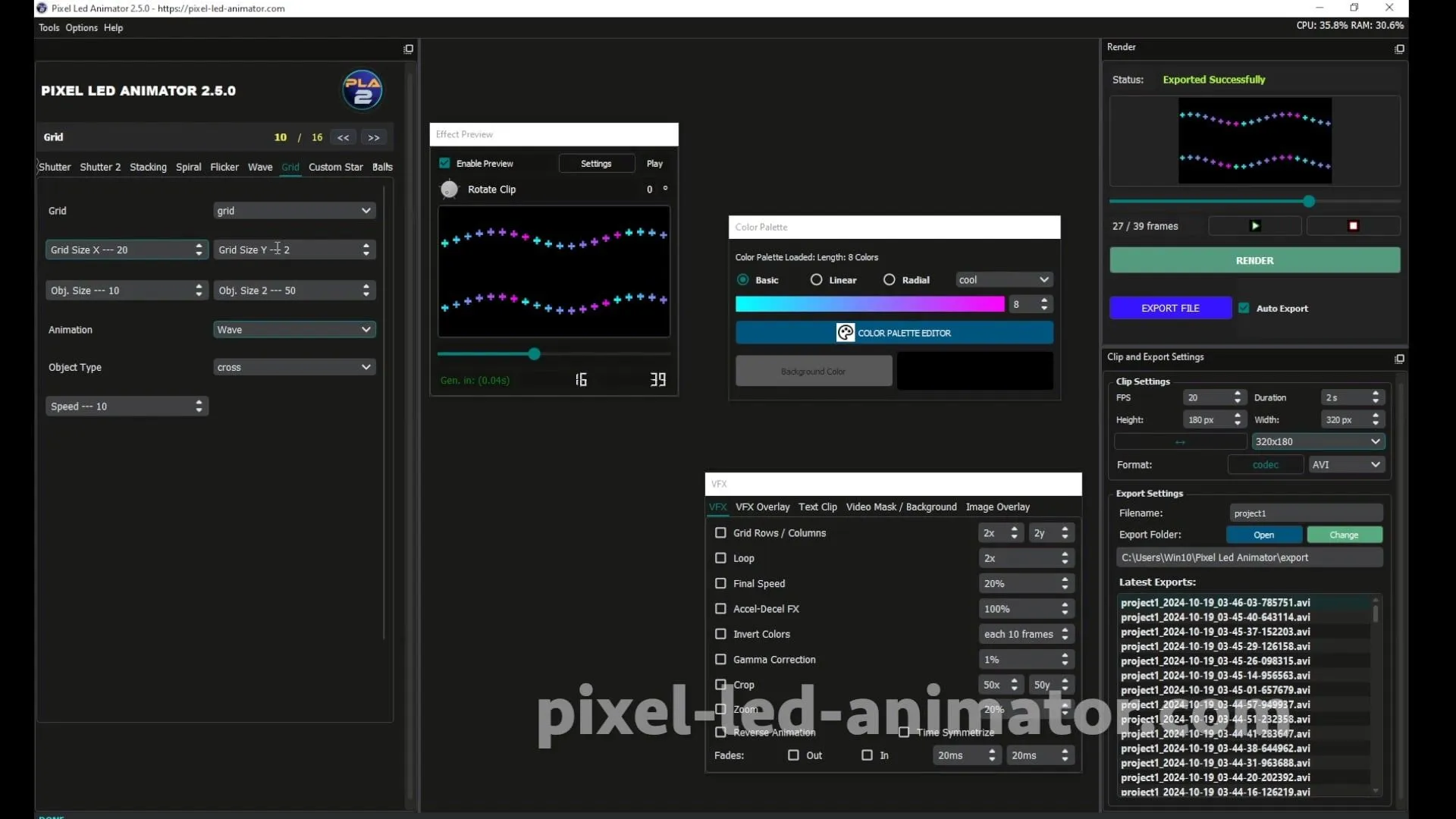
LEDEdit is a free LED animation software that works with the T1000S pixel controller to create custom LED effects. To set up LEDEdit with the T1000S, follow these 5 steps: 1) Connect the T1000S to your PC via USB or insert a programmed SD card, 2) Open LEDEdit and select your LED type and count, 3) Configure the COM port or export to SD card, 4) Load or create effects using the built-in tools, 5) Export as SWF or AVI files or transfer to the SD card. The T1000S supports up to 8,192 pixels and multiple LED types including WS2812B, SK6812, and WS2811, operating at 5V–24V DC with up to 6A output per channel.
The T1000s is a professional LED strip controller designed for custom lighting installations. This guide provides accurate information for proper setup and operation.
Package Contents
- T1000s Controller Unit
- Power Adapter
- Mounting Hardware
- User Manual
Technical Specifications
- Input Voltage: DC 5V-24V
- Max Output: 6A per channel
- Control Method: SD Card Programming
- Working Temperature: -20°C to 60°C
- Protection: Short circuit, over-voltage, over-temperature
Installation Guide
1. Power Connection
- Connect your power supply to the controller’s DC input
- Verify correct polarity (red to +, black to -)
- Ensure power supply matches your LED strip requirements
2. LED Strip Connection
- Connect LED strip data input to controller output
- Ensure proper grounding
- Secure all connections
3. Initial Power On
- Connect power to the controller
- Status LED should illuminate
- Verify LED strip responds correctly
Programming with LEDEdit
Software Requirements
- Windows PC
- LEDEdit software (compatible version)
- Micro SD card (formatted to FAT32)
Pro Tip: Looking for ready-made effects? Browse our LED effects pack with over 1,850 professional LEDEdit effects ready to use.
Basic Programming Steps
- Install LEDEdit on your computer
- Create or import your LED animation
- Configure for T1000s controller
- Export to SD card
- Insert SD card into controller
Operation Modes
SD Card Mode
- Insert programmed SD card
- Controller automatically loads first program
- Programs play in sequence
Standalone Mode
- Programs run from internal memory
- No computer required after programming
- Supports multiple program slots
Troubleshooting
No Power
- Check power connections
- Verify power supply output
- Inspect fuse if equipped
LED Strip Not Responding
- Check data connection
- Verify correct voltage
- Inspect for damaged wires
Program Not Loading
- Reformat SD card (FAT32)
- Check file format (.led or .bin)
- Try different SD card
Maintenance
- Keep controller dry and ventilated
- Check connections regularly
- Clean dust from ventilation holes
- Update firmware when available
Take Your LED Projects to the Next Level
Looking for professional-grade effects and animations? Check out our LED effects pack featuring:
- 100+ pre-made animations
- Easy import into LEDEdit
- Customizable color schemes
- Regular updates with new effects
Support
For technical assistance, please refer to the official documentation or contact support with your controller’s serial number.